Stop typing fee sheets
It’s nine at night. The kitchen is clean, the house is quiet, and you have three lender fee sheets open on one screen and an empty form on the other. Underwriting fee. Appraisal. Credit report. Closing fee. Lender’s title. Endorsement. Doc prep. Wire. Courier. Recording. Then the prepaids. Then the taxes, the insurance, and the months of each. Then you do the whole thing twice more, because your borrower asked to see options — and showing options is the job.
Nobody got into this business to be a data-entry clerk. But that’s what the last hour of a lot of days looks like, and it’s worse than boring, because typing isn’t free.
A transposed digit in a title endorsement is a rounding error. The same slip in a loan amount is a phone call with a borrower who wrote your number down. Every one of those forty lines is a chance to fumble, at the hour of the day when you’re least likely to catch it. The cost of re-typing a fee sheet is measured in accuracy as much as in minutes.
So don’t type it. Upload it.
Hand LendrTech the PDF
Open Clients in the sidebar and pick the client this loan belongs to. Click New fee sheet, answer the Loan type question in the dialog if you already know it, and click Import PDF.
That lands you on a screen with one job. Confirm Loan type at the top — Purchase, Refinance, or Detect from the PDF — then drop the file on the upload area, or click it to browse. One file at a time, PDF only, 5 MB max. Press Import and wait a few seconds.
Telling it the loan type is worth the half-second on a refinance. A lender fee sheet that prints no property value reads like a purchase, and a refinance that arrives built as a purchase has to be rebuilt by hand. Your answer wins over the guess.
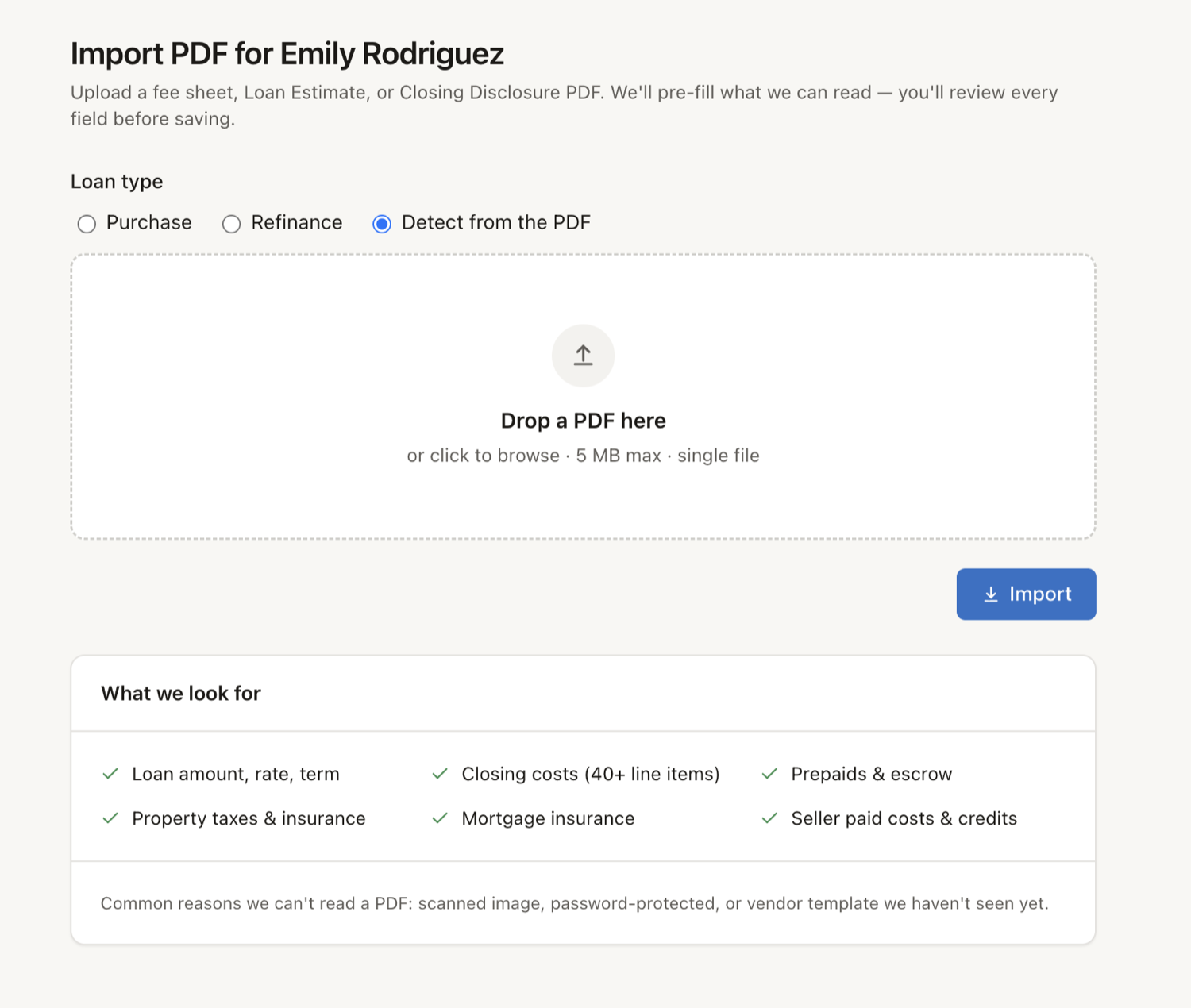
A lender’s closing cost fee sheet, a Loan Estimate, or a Closing Disclosure all work. Here’s what it goes looking for:
- Loan amount, rate and term
- Closing costs, line by line
- Prepaids and escrow
- Property taxes and insurance
- Mortgage insurance
- Seller-paid costs and credits
Anything the document doesn’t cover, you fill in by hand exactly as you always have. Free-form named credits are the usual example — those stay yours to add.
It reads a document. It doesn’t price a loan.
Worth being precise about this, because “AI” and “mortgage” in the same sentence makes people nervous, and it should.
The import does one thing: it reads the numbers printed on the document you handed it and drops them into the matching fields. It doesn’t invent a figure, it doesn’t decide what a fee ought to be, and it never does the math. Every total on the sheet is computed exactly the way it is on a fee sheet you built by hand, by the fee sheet itself — the same engine, the same result. The import fills boxes; the fee sheet does arithmetic. Two different jobs, and they stay that way. There’s more on where AI touches your work and where it deliberately doesn’t in how LendrTech uses AI.
Which is exactly why the next part matters.
Review before you save
An imported fee sheet opens with a Review needed banner and every imported field highlighted. Walk them. Dollar amounts and rates first — those are the ones a borrower repeats back to you.
Most of the time this is a thirty-second scan instead of a twenty-minute transcription, which is the whole point. But it’s a scan you do, not one you skip. Extracted values are pre-filled, not gospel, and you are the one who signs your name to the report they end up in.
On a refinance, one highlighted field is different in kind: Refinance Type. No document states it, so there’s nothing to check it against — pick the one that applies. It’s highlighted as needs-answering rather than needs-checking, and on a VA loan it’s what prices the funding fee, so it earns its two seconds.
Nothing is stored until you press Save. After that it behaves like any fee sheet you built yourself: edit it later, save it as a template, or pull it straight into a purchase comparison or any other report.
When a PDF won’t read
Three usual suspects. A scanned image — a photograph of a page — reads poorly or not at all, where a PDF with real text behind it reads well. A password-protected file needs its password removed first. And a vendor layout nobody has seen before may only come back partly filled.
When an import comes back thin, entering the numbers by hand or starting from one of your templates beats fighting the document. And if a fee sheet that’s common in your market fails consistently, send it to team@lendrtech.com. Real examples are how the importer gets better — that’s not a courtesy line, it’s the actual mechanism.
What it costs you
Every plan includes a monthly import allowance, and on Max imports are unlimited. Each upload counts as one import whatever the document is, so give each one a real review rather than re-importing the same file to see if it comes out differently the second time. Nothing else you do in LendrTech draws on that allowance. The current numbers live on the pricing page, and usage and limits explains how the meters relate to each other.
One related limit worth knowing: an import ends in a new fee sheet, so if you’re at your plan’s saved fee sheet limit, imports pause until you clear one out.
Where to go next
- Importing a fee sheet — the full step-by-step guide
- Fee Sheets — what the sheet does with the numbers once they land
- How LendrTech uses AI — every place AI touches your work, and the lines it doesn’t cross
- Usage and limits — the allowances, plainly
Something not reading the way it should? Tell us at team@lendrtech.com — a real PDF attached is worth a thousand words of description.