Say it once, and it’s built
It’s 5:40 on a Tuesday. Your referral partner texts you a name, a phone number and “they’re pre-approved somewhere else, can you beat it?” You know exactly what you need: the borrower in your system, two fee sheets at two different rates so the trade-off is visible, and a comparison report you can send before they go to dinner and forget you exist.
You also know exactly what that costs. A client form. A fee sheet, field by field. A second one identical except for a single rate, typed again anyway. Then the report builder. Half an hour of clerical work standing between you and a five-minute job.
So describe it instead.
Tell Sage what you want
Open Sage, switch the pill at the top of the panel from Advisory to Actions, and type it the way you’d say it to a colleague:
Add Marcus Bell as a client, build him a purchase fee sheet, then copy it at the second rate I’ll give you and put the two side by side in a comparison report.
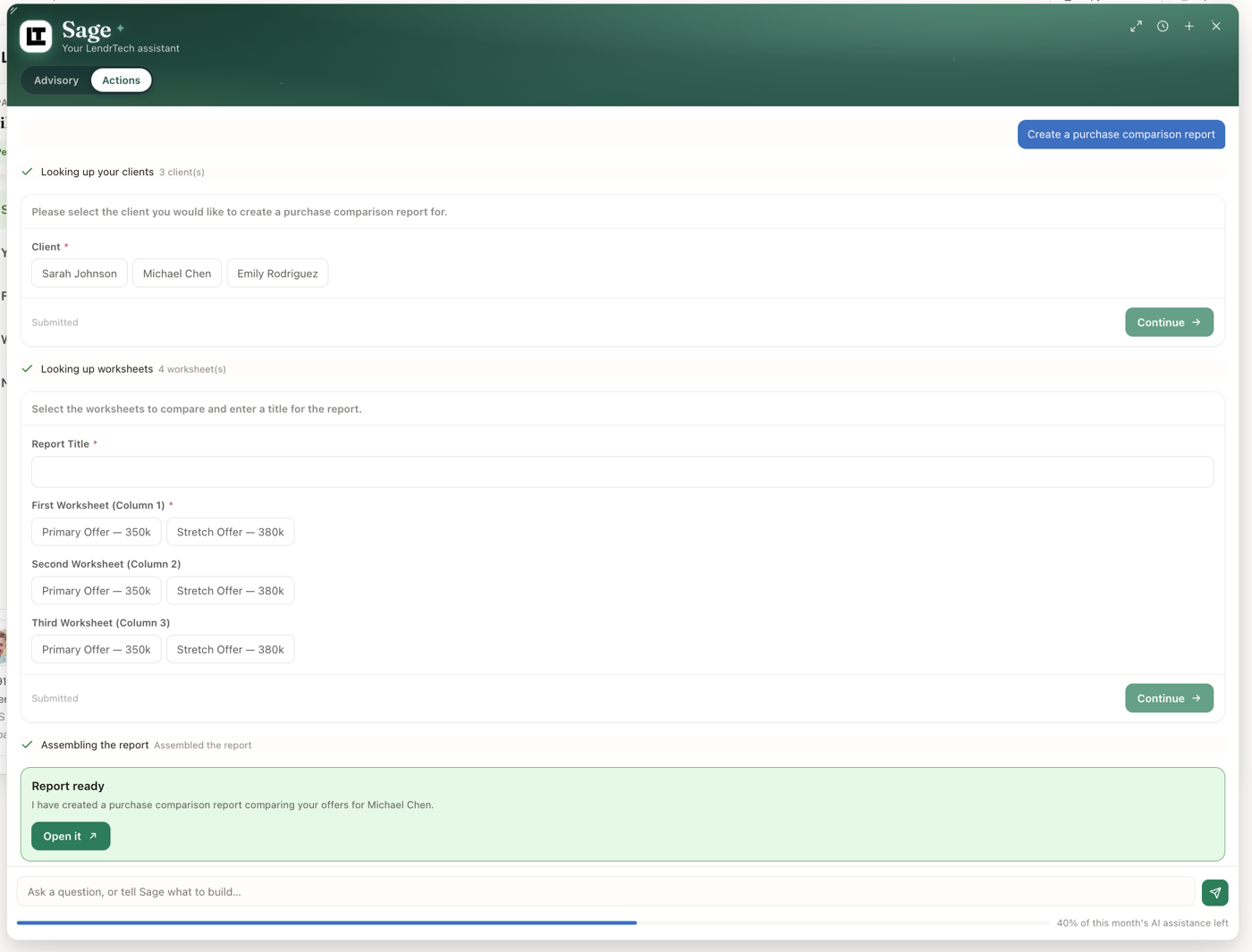
Then watch. Sage works in step rows that appear and tick off as it goes — Looking up your clients, Adding the client, Building the fee sheet, Copying the fee sheet, Assembling the report — so you can see what it’s doing while it does it, not afterwards in a summary you have to take on faith. When it finishes, it hands you an Open it button that drops you straight onto what it built — because the point isn’t that a robot did it, it’s that you check it and send it.
It asks instead of guessing
Here’s the part that decides whether this is useful or just alarming.
Sage will not invent a value that affects money. Not a loan amount, not a rate, not a fee, not a credit, not a term, not a number of days. If it doesn’t have something it needs, it stops and asks — and it asks once, batching every open question into a single short form rather than dripping them out while you sit there. Purchase price, rate, term, whether taxes are annual: one card, one pass.
That card also states the assumptions it’s about to make, in plain words, so you can correct it before anything exists. And it says Nothing is saved yet until you press Continue — the literal truth, with no half-built client record to go clean up.
The other half of that rule: Sage never computes a total. It fills in the values you gave it and lets the fee sheet and the report do the math — the same engine you’d be using if you’d typed every field yourself, so a sheet Sage built and a sheet you built produce the same numbers. It can read back a value you saved. It won’t produce a payment, an APR or a cash-to-close of its own. There’s exactly one calculator in this product, and it isn’t the model.
Anything a borrower would see stops on a card
Building is one thing. Sending is another, and Sage knows the difference.
Three kinds of action pause for a confirmation card before they happen: emailing a report to a borrower, deleting anything, and changing a client’s email address. Each card says plainly what it’s about to do — This leaves LendrTech — confirm first, This deletes data — confirm first, This changes where borrower emails go — confirm first — and spells out the specifics underneath. A send card names the recipient and the address it’s going to. A delete card names what’s being deleted and what goes with it, so “delete the client” never quietly means “delete the client, their four fee sheets and their two reports.” An email change shows you the address now and the address after.
Nothing happens until you press Send it, Delete it or Make the change. Not yet stops it dead.
What it can actually do
The whole list, in plain terms:
- Clients — find one by name, read their saved details, add a new one, or update an existing one — changing only the fields you name. Deleting one is possible, and always confirmed first.
- Fee sheets — list a client’s sheets, read the values on one, build a new purchase or refinance sheet, update one, or copy one with a couple of fields changed. That copy is the fast path to rate and scenario variants: same sheet, different rate, one sentence.
- Templates — start a new client’s fee sheet from one of your saved templates, or save a fee sheet you like as a new template to reuse.
- Reports — assemble a purchase comparison from up to three of a client’s purchase sheets, a refinance analysis from up to two refinance sheets alongside the loan they have today, or a single-loan breakdown of one sheet. It can also read back which fee sheets fill a report’s columns, rename a report, and — confirmed first — delete one.
- Changing a report you already have — swap which fee sheets fill its columns, rename the columns, put it on a different color theme, show or hide a row or a chart, highlight the rows that matter, mark the option you recommend, and on a refinance set the savings horizon or correct the borrower’s current-mortgage figures. This is the half people don’t expect: you don’t have to rebuild a report to change it.
- Send — email a saved report to the borrower, on a confirmation card. That send delivers the report link rather than the polished PDF; for the PDF, use Send in the report builder.
Notice how much of that list is looking things up: Sage checks what already exists before it creates anything, which is what keeps you from ending up with three Marcus Bells.
Where the work goes
Actions is part of the Max plan; on other plans the Actions pill shows a lock and Sage’s answers keep working as they always have. Builds draw on your monthly AI assistance — the same pool as everything else AI does for you — which fills as a run goes and refills each month. Asking questions is never switched off by it, whatever the bar says. Plan details are on the pricing page.
None of this replaces knowing your file. It replaces typing your file. The judgment — which options to show, which one you’d actually recommend, what to say on the call — is still the job, and it’s still yours.
Where to go next
- Sage Actions — the full guide, including every confirmation card
- Meet Sage — the assistant underneath it, and what it declines to do
- Meet Sage, the post — why the guardrails are drawn where they are
- Plans and billing — what Max includes
Built something and it came out wrong? We’d genuinely like to see it — team@lendrtech.com.